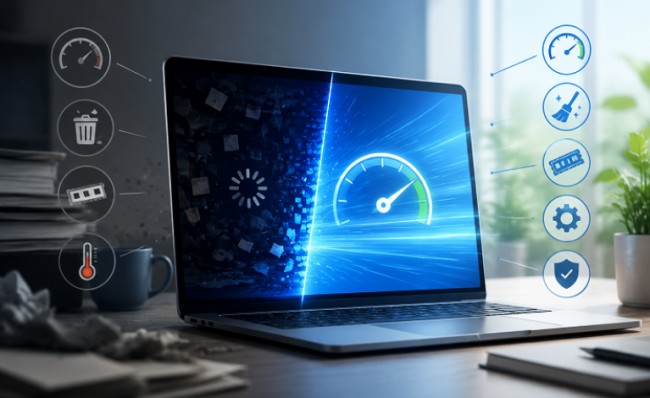
Getting the best performance from a computer involves more than purchasing powerful hardware. Software compatibility, component balance, and system configuration all play important roles in how smoothly a PC operates. Whether you use your computer for gaming, video editing, or everyday productivity, understanding its strengths and limitations can help you make better decisions. Tools that help you update drivers, analyze hardware bottlenecks, and rate my PC performance can provide useful insights into your system’s overall condition.
Why It Is Important to Update Drivers
Drivers allow your operating system to communicate with hardware components such as graphics cards, processors, network adapters, and audio devices. Without suitable drivers, hardware may not function correctly or deliver its expected performance.
When you update drivers, you can benefit from compatibility improvements, bug fixes, security enhancements, and sometimes better performance. Graphics drivers are particularly important for gamers because manufacturers regularly release updates to support new games and resolve known graphical issues. Network driver updates can also help address connectivity problems, while audio updates may improve device compatibility.
Outdated or corrupted drivers can sometimes cause unexpected crashes, display problems, poor connectivity, or hardware errors. Keeping essential drivers current can reduce these issues and help maintain system stability.
There are several ways to manage driver updates. You can visit the official website of your hardware manufacturer, use Windows Update, or choose a reputable driver management utility. Before installing an update, confirm that it matches your hardware model and Windows version. It is also useful to review release notes and create a restore point before making significant system changes.
Although updated drivers can improve compatibility, they do not guarantee faster performance in every situation. If your PC struggles because of limited RAM, an older processor, or overheating, you may need to investigate the hardware rather than relying only on software updates.
Identify Hardware Limitations with a Bottleneck Calculator
A computer’s performance depends on how well its components work together. Sometimes, one component cannot keep up with the demands placed on it by another. This situation is commonly known as a hardware bottleneck.
For example, pairing a high-end graphics card with an older processor may limit performance in games that require significant CPU processing. Similarly, a weaker graphics card may struggle to deliver smooth frame rates when running demanding games at high resolutions.
A bottleneck calculator helps users estimate whether their processor and graphics card are reasonably balanced. Most tools allow users to select their CPU, GPU, and screen resolution before generating an estimated result. This information can provide a starting point when planning a new PC build or considering a hardware upgrade.
For instance, if you are thinking about purchasing a more powerful graphics card, checking your existing processor’s capabilities can help you understand whether the upgrade is likely to deliver meaningful benefits. It may also prevent unnecessary spending on components that cannot be fully utilized by your current setup.
However, bottleneck calculator results should not be treated as exact measurements. Actual performance depends on the game, application, graphics settings, memory configuration, and workload. A processor limitation in one game may not be noticeable in another. Independent benchmarks and real-world monitoring are better ways to confirm potential performance restrictions.
Rate My PC and Understand Your System’s Capabilities
Before making upgrades, it is useful to understand how your computer performs compared with typical requirements for different tasks. A rate my PC tool can help users evaluate their hardware configuration and get a general idea of its capabilities.
Depending on the tool, you may be able to enter details such as your processor, graphics card, RAM, and storage device. The tool can then provide an overall assessment or compare your hardware with recommended configurations for gaming and productivity.
This can be especially helpful when deciding whether your computer is suitable for a newly released game, demanding editing software, or multitasking. Instead of replacing components based on assumptions, you can use the results to identify areas that may benefit from improvement.
Some performance assessment tools also provide recommendations for possible upgrades. For example, they may indicate that adding more memory or upgrading a graphics card could improve performance in particular workloads.
Still, a rating is only a general reference. Different applications use hardware in different ways, and a single score cannot describe every aspect of computer performance. Consider actual benchmarks, system temperatures, storage health, and your everyday experience before making purchasing decisions.
Use These Tools Together for Smarter PC Upgrades
Driver maintenance, hardware analysis, and performance evaluation work well as part of one routine. First, update drivers to maintain compatibility and resolve known software issues. Next, use a bottleneck calculator to examine whether your main components are balanced. Finally, use a rate my PC assessment to understand your computer’s general capabilities and identify possible upgrade priorities.
After making changes, test your system with the applications or games you actually use. Comparing performance before and after an upgrade can help you determine whether the investment was worthwhile.
Conclusion
Maintaining and improving a computer becomes easier when you understand how its hardware and software work together. Regularly updating drivers supports compatibility, a bottleneck calculator helps identify potential hardware limitations, and a rate my PC tool provides a useful overview of system capabilities. By combining these resources with real-world testing, you can make informed upgrade decisions and build a more reliable, balanced computer.


